
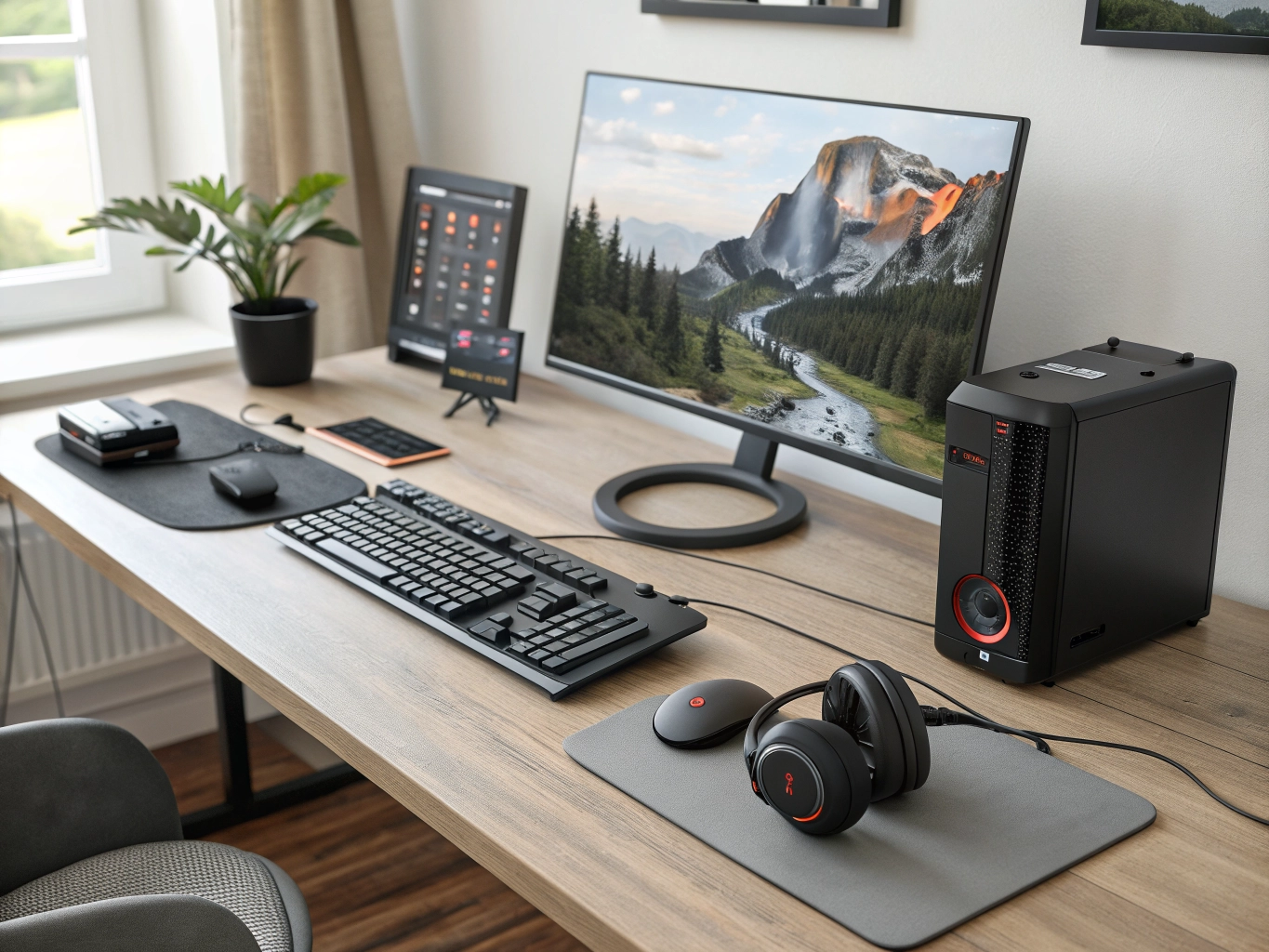
Computer peripherals are essential accessories that help users interact with computers and improve productivity, comfort, entertainment, gaming, and everyday computing. While a desktop or laptop provides the core computing power, the right peripherals can make the overall experience much more convenient and enjoyable.
From keyboards and mice to monitors, webcams, headphones, speakers, microphones, printers, external storage devices, and USB hubs, there are many types of computer peripherals available for different needs and budgets.
Whether you are setting up a home office, upgrading your gaming setup, building a professional workstation, or simply looking for useful computer accessories, choosing the right peripherals can make a significant difference.
What Are Computer Peripherals?
Computer peripherals are external devices that connect to a computer to provide additional input, output, storage, communication, or other functionality.
Common computer peripherals include:
- Keyboards
- Computer mice
- Monitors
- Webcams
- Headphones
- Speakers
- Microphones
- Printers
- External hard drives
- SSDs
- USB hubs
- Docking stations
- Gaming controllers
- Graphics tablets
- Card readers
- External optical drives
Some peripherals connect through USB, while others use Bluetooth, Wi-Fi, HDMI, DisplayPort, or other interfaces.
Why Are Computer Peripherals Important?
The right peripherals can improve your computing experience in several ways.
Better Productivity
A comfortable keyboard, accurate mouse, large monitor, and good audio equipment can make long work sessions easier.
Improved Gaming
Gaming keyboards, gaming mice, high-refresh-rate monitors, headsets, and controllers can enhance a gaming setup.
Better Communication
Webcams and microphones are useful for online meetings, classes, streaming, and video calls.
Expanded Storage
External SSDs and hard drives provide additional storage for files, backups, photos, videos, and projects.
More Connectivity
USB hubs and docking stations can add additional ports to laptops and desktops.
1. Computer Keyboards
The keyboard is one of the most important computer peripherals for anyone who regularly types documents, emails, messages, reports, code, or other content.
There are several types of keyboards available.
Membrane Keyboards
Membrane keyboards are commonly available at affordable prices and can be suitable for general office and home use.
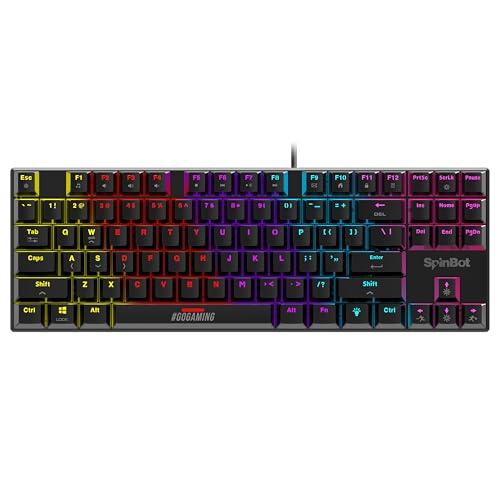
Mechanical Keyboards
Mechanical keyboards use individual mechanical switches and are popular among gamers, programmers, writers, and enthusiasts.
Different mechanical switches can provide different levels of tactile feedback, actuation force, and sound.
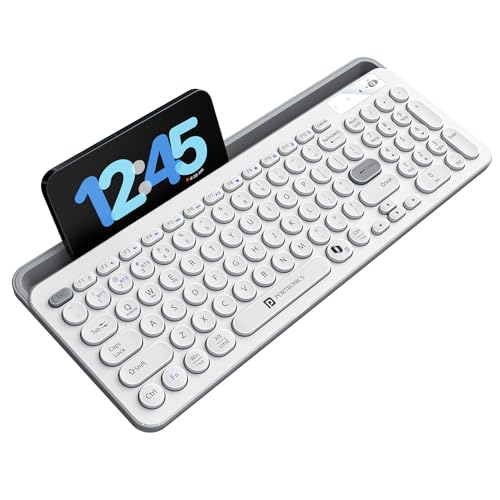
Wireless Keyboards
Wireless keyboards help reduce cable clutter and can be useful for compact workspaces.
Ergonomic Keyboards
Ergonomic keyboards are designed with layouts or shapes intended to provide a more comfortable typing position.
Keyboard Buying Tips
Before purchasing a keyboard, consider:
- Key layout
- Switch type
- Wired or wireless connectivity
- Battery life
- Backlighting
- Number pad
- Media controls
- Build quality
- Key rollover
- Compatibility

2. Computer Mouse
A computer mouse provides precise pointer control and is essential for most desktop computers.
Different users may prefer different mouse designs.
Standard Mouse
A standard mouse can be suitable for browsing, office work, and everyday computing.
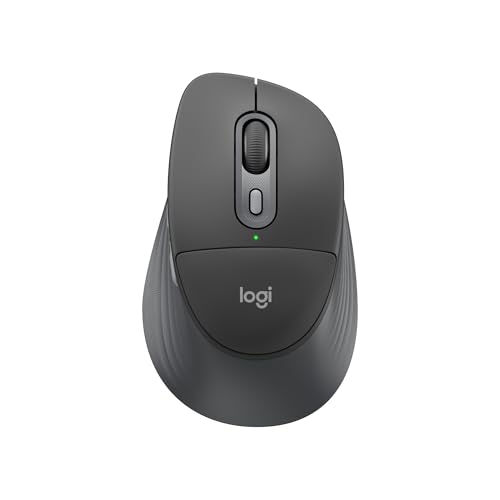
Wireless Mouse
Wireless mice reduce cable clutter and provide greater flexibility.
Gaming Mouse
Gaming mice often include adjustable DPI, programmable buttons, RGB lighting, and higher-performance sensors.
Ergonomic Mouse
Ergonomic mice are designed to provide alternative hand positions and may be useful for users who spend many hours at a computer.
Mouse Features to Consider
- DPI range
- Sensor technology
- Button count
- Programmable buttons
- Wired or wireless connection
- Battery life
- Weight
- Shape
- Grip style
- Software support


3. Computer Monitors
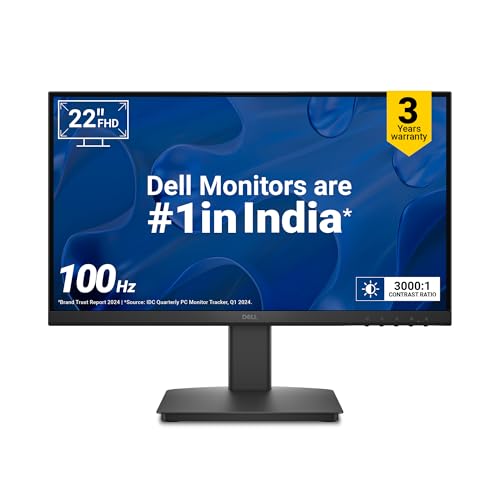
A monitor is one of the most important output peripherals for desktop computers and can also significantly improve laptop productivity.
When choosing a monitor, consider:
- Screen size
- Resolution
- Refresh rate
- Panel technology
- Brightness
- Contrast
- Color reproduction
- Response time
- Connectivity
- Ergonomics
Monitor Sizes
Common monitor sizes include:
- 21.5 inches
- 24 inches
- 27 inches
- 32 inches
- 34 inches and larger
A 24-inch monitor can be suitable for many basic workstations, while 27-inch and larger displays provide additional screen space for multitasking and entertainment.
Monitor Resolution
Popular resolutions include:
- Full HD
- QHD
- 4K
- Ultrawide resolutions
Higher resolutions can provide sharper text and images, although the computer’s graphics hardware should also be considered.


4. Webcams
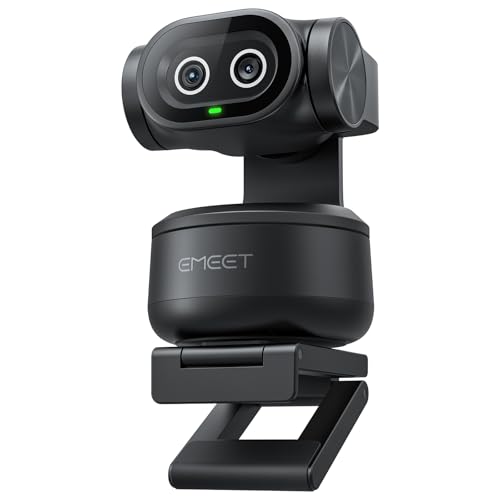
A webcam is useful for video meetings, online classes, streaming, interviews, and video calls.
Laptop users already have built-in webcams, but an external webcam can provide additional flexibility and potentially improved image quality depending on the model.
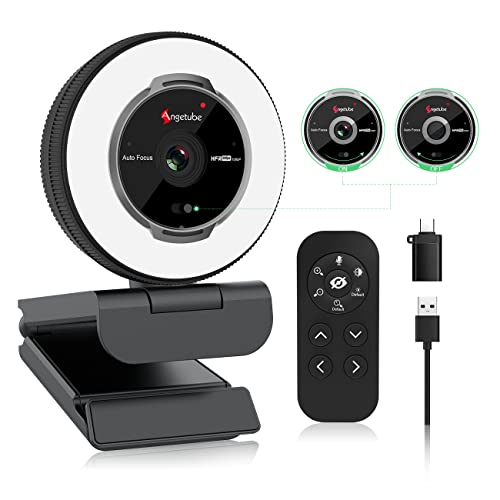
Webcam Features
Look for:
- Resolution
- Frame rate
- Autofocus
- Built-in microphone
- Low-light performance
- Privacy shutter
- Adjustable mounting
- USB connectivity
- Compatibility
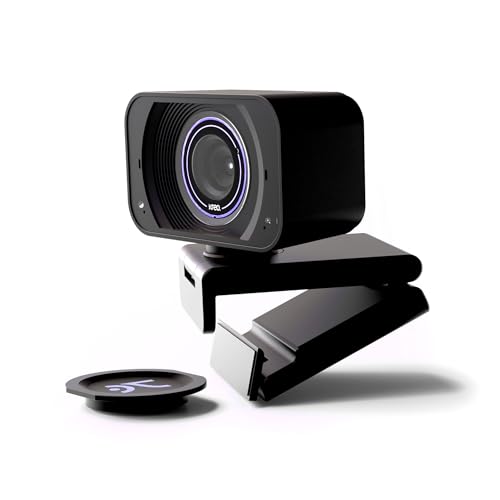
A Full HD webcam can be a useful option for video conferencing, while higher-resolution webcams may be attractive for creators and streamers.
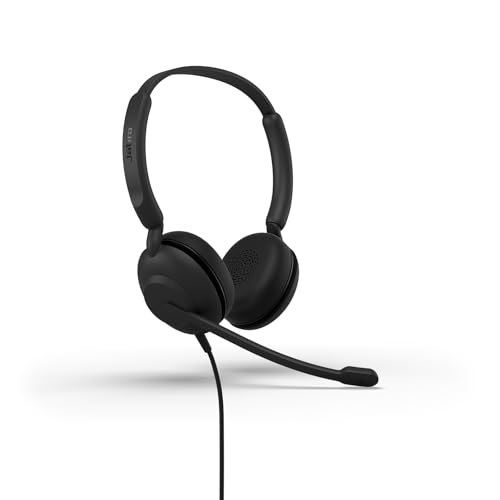
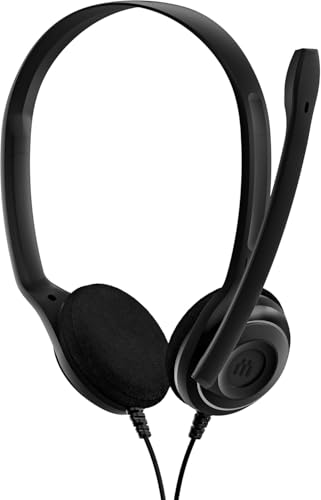
5. Computer Headphones and Headsets
Headphones and headsets are useful for music, movies, gaming, video meetings, online classes, and communication.
A headset generally combines headphones with a microphone, making it convenient for communication.
Wired Headphones
Wired models provide a direct connection and don’t require battery charging.
Wireless Headphones
Wireless headphones offer greater freedom of movement and can reduce cable clutter.
Gaming Headsets
Gaming headsets may include surround or spatial audio features, boom microphones, and gaming-focused designs.
Headphone Buying Checklist
Consider:
- Audio quality
- Driver size
- Wired or wireless
- Battery life
- Microphone quality
- Noise cancellation
- Comfort
- Weight
- Compatibility
- Controls

6. Computer Speakers
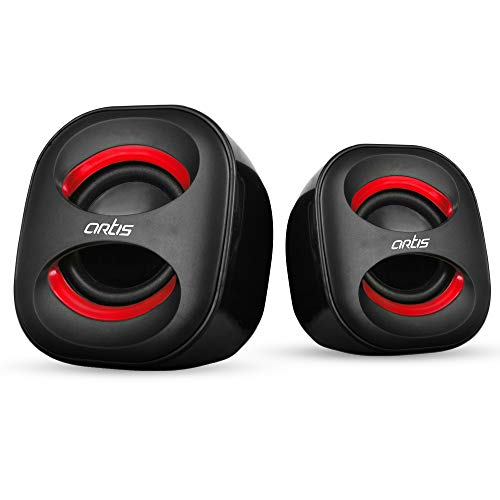
Computer speakers can improve the audio experience compared with basic built-in laptop speakers or inexpensive monitor speakers.
They can be useful for:
- Music
- Movies
- Gaming
- Video meetings
- Online classes
- General multimedia
Some desktop speaker systems use USB power, while others require a separate power connection.
Speaker Features
Check:
- Number of speakers
- Total output
- Connectivity
- Bluetooth
- USB
- 3.5mm input
- Volume controls
- Subwoofer
- Desktop size
For a compact workspace, smaller speakers can be more practical.


7. External Storage Devices
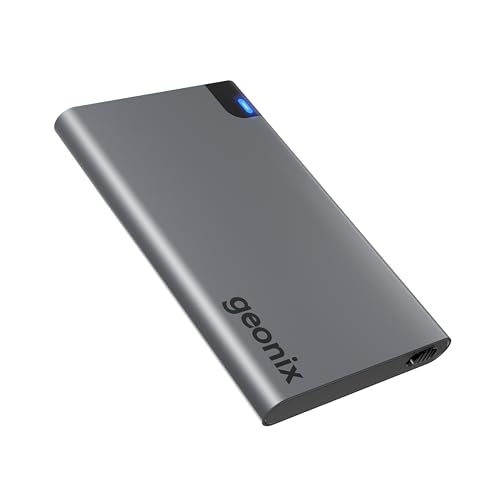
External storage is useful for increasing available storage and backing up important files.
Popular external storage devices include:
- External HDDs
- External SSDs
- USB flash drives
- Memory card readers
External HDD
External hard drives can provide large storage capacities and can be useful for backups and media libraries.
External SSD
External SSDs generally offer faster data access and can be useful for transferring large files and working with projects.
What to Check
- Storage capacity
- Read/write speed
- USB interface
- Portability
- Durability
- Encryption features
- Warranty

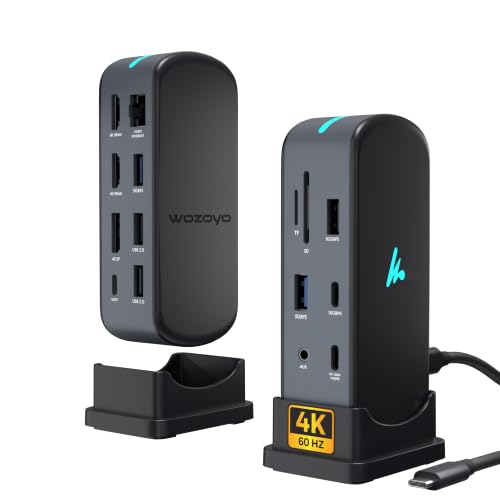
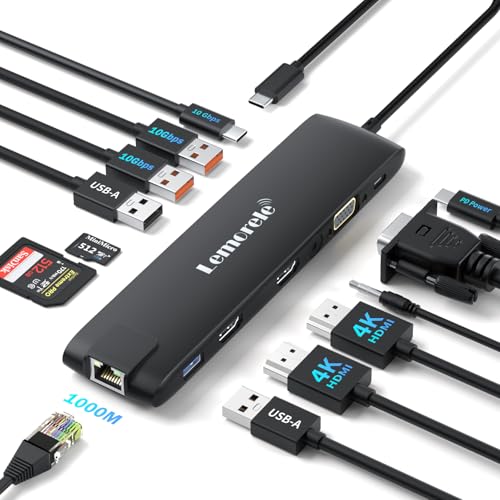
8. USB Hubs and Docking Stations
Modern laptops often have fewer physical ports than traditional desktops. A USB hub or docking station can solve this problem by expanding connectivity.
Depending on the model, a hub may provide:
- USB-A ports
- USB-C ports
- HDMI
- DisplayPort
- Ethernet
- SD card reader
- Audio
- Power delivery
Docking stations are particularly useful for users who connect laptops to multiple external devices.
USB Hub Buying Tips
Check:
- Number of ports
- USB generation
- Data transfer speed
- Power delivery
- Video output
- Ethernet
- Compatibility
- Build quality

9. Printers and Scanners
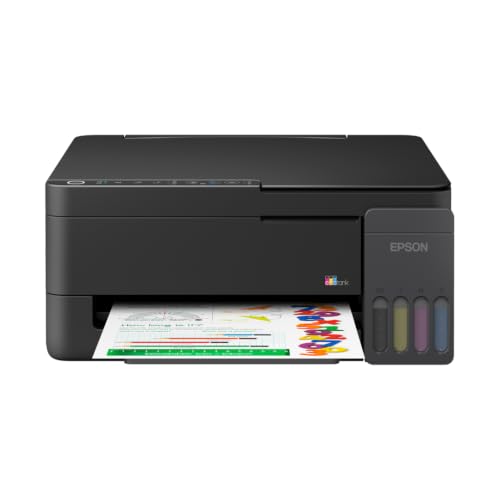
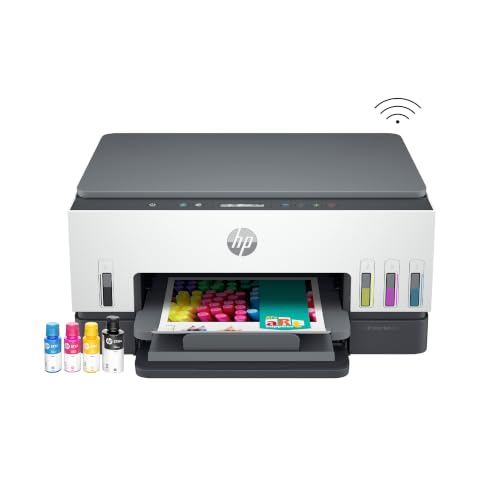
Printers remain useful for home offices, businesses, schools, and households.
Popular printer categories include:
- Inkjet printers
- Laser printers
- All-in-one printers
- Photo printers
Inkjet Printers
Inkjet printers can be suitable for documents and color printing and are also commonly used for photos.
Laser Printers
Laser printers are often popular for document-heavy environments.
All-in-One Printers
All-in-one models can combine printing, scanning, and sometimes copying functions in a single device.
Printer Features to Compare
- Print speed
- Print resolution
- Color or monochrome
- Duplex printing
- Wi-Fi
- USB
- Mobile printing
- Scanner resolution
- Ink or toner cost

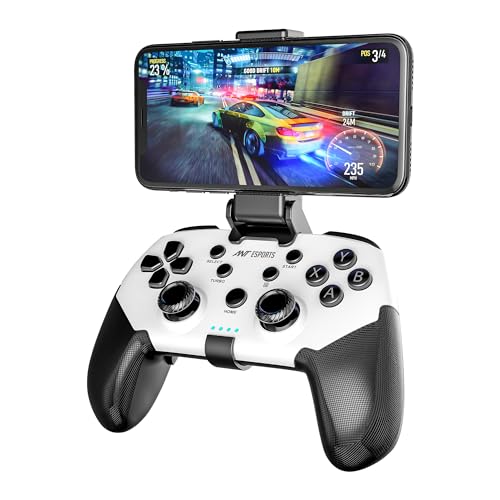
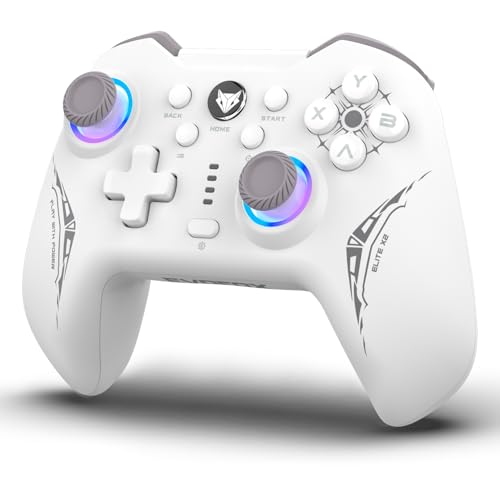
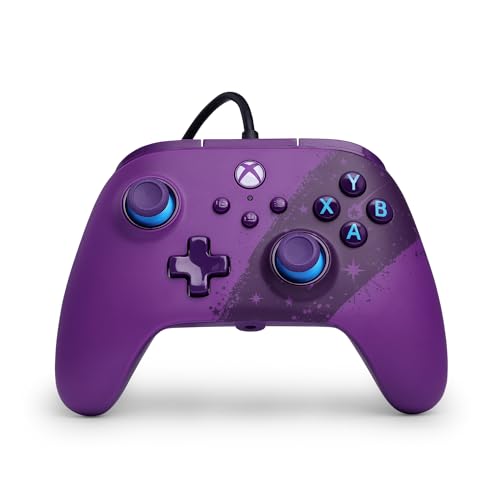
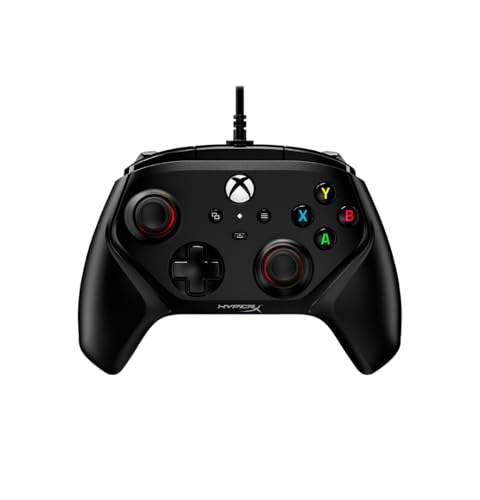
10. Gaming Controllers and Other Input Devices
Gaming controllers can provide an alternative to a keyboard and mouse for compatible PC games.
Depending on the model, controllers may offer:
- Analog sticks
- Trigger buttons
- Vibration feedback
- Wireless connectivity
- Wired connectivity
- Programmable controls
- Ergonomic designs
Other specialized input peripherals include graphics tablets, racing wheels, flight controls, and presentation remotes.
These devices can make specific computing activities more convenient.

How to Choose the Best Computer Peripherals
Choosing computer accessories becomes easier when you start with your intended use.
For Office Work
Consider:
- Comfortable keyboard
- Ergonomic mouse
- Large monitor
- Webcam
- Headset
- USB hub
For Gaming
Consider:
- Mechanical gaming keyboard
- Gaming mouse
- High-refresh-rate monitor
- Gaming headset
- Speakers
- Controller
For Content Creation
Consider:
- High-resolution monitor
- Accurate keyboard
- Precise mouse
- External SSD
- Webcam
- Microphone
- USB-C docking station
For Students
Consider:
- Affordable keyboard and mouse
- Monitor if using a desktop
- Webcam
- Headphones
- External storage
- USB hub
Wired vs Wireless Computer Peripherals
One of the biggest decisions when purchasing computer peripherals is choosing between wired and wireless models.
Wired Peripherals
Advantages include:
- No battery charging
- Stable connection
- Simple setup
- Often lower latency
- Suitable for permanent workstations
Wireless Peripherals
Advantages include:
- Cleaner desk
- Greater flexibility
- Easy portability
- Reduced cable clutter
Wireless peripherals are particularly useful for minimalist workspaces.
Bluetooth vs 2.4GHz Wireless
Wireless devices may use different technologies.
Bluetooth
Bluetooth peripherals are convenient because many computers already support Bluetooth.
2.4GHz Wireless
Many wireless gaming mice, keyboards, and headsets use dedicated USB receivers.
A dedicated wireless receiver can provide a reliable connection and may be preferred for certain gaming peripherals.
USB Connectivity Guide
USB is one of the most common connections for computer peripherals.
Depending on the device, USB can be used for:
- Data transfer
- Charging
- Audio
- Video
- Networking
- Connecting accessories
When buying a USB hub, cable, or docking station, check the exact USB standard and supported features rather than assuming all USB ports offer identical performance.
Computer Peripheral Compatibility
Before buying any peripheral, check whether it works with your operating system and computer.
Compatibility may involve:
- Windows
- macOS
- Linux
- ChromeOS
- Gaming consoles
- Android devices
- iPhones or iPads
Some advanced keyboards, mice, webcams, and other accessories require dedicated software for additional functions.
Ergonomics and Comfort
If you spend many hours using a computer, comfort should be an important consideration.
Look for:
- Comfortable keyboard layout
- Appropriate mouse size
- Adjustable monitor height
- Suitable viewing distance
- Comfortable headphones
- Proper desk setup
A monitor with an adjustable stand can make positioning easier.
Computer Peripheral Buying Checklist
Before purchasing an accessory, check:
Compatibility
Confirm compatibility with your computer and operating system.
Connectivity
Choose the connection type that fits your setup.
Features
Avoid paying extra for features you don’t need.
Build Quality
Look for durable construction appropriate for your intended usage.
Reviews
Read multiple customer reviews to identify common experiences with performance, reliability, comfort, and durability.
Warranty
Check the manufacturer’s warranty and support options.
Replacement Parts
For products such as keyboards, mice, headsets, and printers, check whether replacement parts or consumables are easily available.
How to Build a Complete Computer Setup
A basic workstation might include:
- Computer or laptop
- Keyboard
- Mouse
- Monitor
- Webcam
- Headphones
- USB hub
- External storage
A gaming setup could additionally include:
- Gaming keyboard
- Gaming mouse
- Gaming monitor
- Gaming headset
- Speakers
- Controller
- Large mouse pad
A content-creation workstation may benefit from:
- High-quality monitor
- External SSD
- Webcam
- Microphone
- Keyboard
- Precision mouse
- USB-C docking station
Computer Peripheral Maintenance Tips
Proper maintenance can help extend the useful life of your accessories.
Keyboard
Remove dust and debris regularly. Avoid spilling liquids over the keyboard.
Mouse
Keep the sensor area and mouse surface clean.
Monitor
Use appropriate cleaning materials and avoid applying excessive liquid directly to the display.
Headphones
Keep ear cushions and cables clean and store the device safely.
External Drives
Avoid dropping portable storage devices and safely eject them when required.
USB Hubs
Avoid exceeding recommended power limits and use compatible power adapters when required.
Printer
Follow the manufacturer’s maintenance instructions and use compatible ink or toner.
Best Computer Peripherals for Home Office
A home office can benefit from a comfortable and efficient accessory setup.
Recommended categories include:
- Ergonomic keyboard
- Wireless mouse
- 24-inch or larger monitor
- Full HD webcam
- Wireless headset
- USB hub
- External SSD
- Printer
The exact combination depends on your work requirements and available desk space.
Best Computer Peripherals for Gaming
Gaming accessories can be selected according to the type of games you play.
For competitive games, a responsive mouse, suitable keyboard, high-refresh-rate monitor, and low-latency headset may be important.
For casual gaming, you may prioritize comfort, audio quality, display quality, and overall value.
Best Computer Peripherals for Students
Students often need affordable and versatile accessories.
Useful peripherals include:
- Keyboard
- Mouse
- Webcam
- Headphones
- USB flash drive
- External storage
- USB hub
If studying from home, a good webcam and headset can also be useful for online classes and meetings.
Frequently Asked Questions About Computer Peripherals
What are computer peripherals?
Computer peripherals are external devices that connect to a computer to provide input, output, storage, communication, or additional functionality.
What are the most common computer peripherals?
Keyboards, mice, monitors, webcams, headphones, speakers, printers, external storage devices, and USB hubs are among the most common computer peripherals.
Are wireless peripherals better than wired peripherals?
Neither is universally better. Wired devices offer direct connections without battery charging, while wireless devices can reduce cable clutter and improve portability.
What computer peripherals are useful for gaming?
Common gaming peripherals include gaming keyboards, gaming mice, gaming monitors, gaming headsets, speakers, and controllers.
What peripherals are useful for working from home?
A comfortable keyboard, mouse, monitor, webcam, headset, USB hub, and external storage device can be useful for a home office.
Do I need an external webcam?
If your laptop or monitor has a webcam that meets your needs, you may not need an external model. An external webcam can provide additional positioning flexibility and may offer improved features.
Is an external SSD better than an external HDD?
External SSDs generally provide faster performance and better portability, while external HDDs can offer large storage capacities at different price points.
What should I check before buying a USB hub?
Check the number and type of ports, USB standard, data transfer speeds, power delivery, video support, compatibility, and build quality.
How do I choose a computer mouse?
Consider its size, shape, sensor, DPI range, button layout, connection type, battery life, and intended use.
What should I consider when buying a monitor?
Compare screen size, resolution, refresh rate, panel technology, brightness, connectivity, response time, stand adjustment, and intended use.
Final Thoughts
Computer peripherals can transform a basic computer into a more productive, comfortable, entertaining, or gaming-focused workstation.
Whether you are looking for a keyboard, mouse, monitor, webcam, headphones, speakers, external SSD, USB hub, printer, gaming controller, or graphics tablet, start by identifying your requirements and then compare the specifications that matter most.
Before publishing product information, verify the latest specifications, prices, warranty details, compatibility, and availability because these details can change.
Affiliate Disclosure
This article may contain affiliate links. If you purchase a product through our affiliate links, we may earn a commission at no additional cost to you. Product prices, specifications, availability, discounts, and offers may change over time.